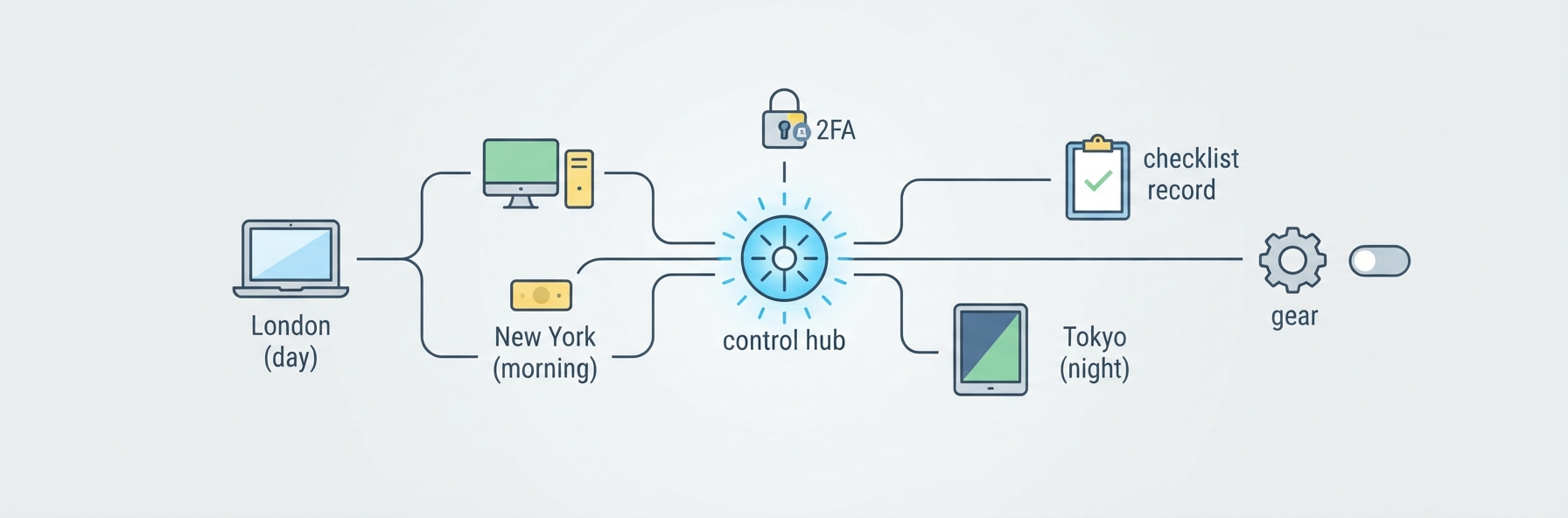
In a ten-person office, IT support means walking over to someone’s desk. In a team spread across three time zones, the same request (“my VPN client won’t start”, “can you install the new printer driver”) turns into a screen-share call, a password read out over chat, and a laptop that nobody can reach once its owner goes to sleep.
Most small teams don’t have a help desk. Support falls to whoever knows the most about computers, and they improvise. This guide is for that person. It covers four decisions that make remote IT support work without turning it into a security hole:
- Attended or unattended access: decide per machine
- Passwords: one-time for people, permanent for machines
- Second factor on the accounts, not just the devices
- Limit what a session can do
- Keep a record you can actually check
- Track support requests where the team already works
We use our own remote access tool, Tenvo, as the example where a concrete setting helps. The principles apply to whatever tool you pick.
Attended or unattended access: decide per machine
Remote support comes in two modes, and mixing them up causes most of the trouble.
Attended access means a person sits at the remote computer and lets you in. They read you a code, you connect, they watch. It suits helping a colleague with their own laptop: they are there, they know you are connecting, and the session ends when the problem is fixed.
Unattended access means you can connect when nobody is at the keyboard. You need it for machines without a regular user: the office PC that runs the accounting software, a build server, a kiosk, a family member’s computer you maintain. You also need it for overnight work, when patching a teammate’s laptop while they sleep is better than interrupting their day.
The rule that keeps this manageable: write down which machines get unattended access, and why. A short list in a shared doc is enough. Every machine on that list is reachable without a human approving the session, so it needs stronger protection than the rest. Every machine not on it should only accept attended sessions.
If you are rolling unattended access out to many machines at once, preconfigured installers and pushing them through your management tool save a lot of clicking. We wrote up the steps for deploying unattended access to hundreds of PCs separately.
Passwords: one-time for people, permanent for machines
The two modes map onto two kinds of password.
One-time passwords are what attended support should use. In Tenvo, the home screen shows a device ID and a one-time password that regenerates every time the app restarts. Your colleague reads both to you, you connect, and once the app restarts the old password is useless. Nothing needs revoking afterwards.
Permanent passwords are what unattended access requires, because nobody is there to read out a fresh code. In Tenvo you set one on the host machine under Settings → Connection → Permanent password. With the device ID and that password, a connection goes through without anyone approving it on the other end. That is the point, and also the risk.
Treat permanent passwords like server credentials:
- One per machine. If one leaks, you change one password, not twenty.
- Long and random, generated by a password manager, stored there, and shared only through it. Never in a chat message.
- Removed when no longer needed. When someone leaves or a machine changes role, turn the permanent password off. The device falls back to one-time passwords, so old credentials stop working.
- Watch for lockouts. Tenvo temporarily blocks a device ID after several wrong passwords. One lockout is usually a typo. Repeated lockouts on an unattended machine mean someone is guessing, and you should change the password.
To stop a machine accepting incoming sessions without uninstalling anything, quit the app or remove the permanent password. On Windows you can also stop the background service.
Second factor on the accounts, not just the devices
Device passwords protect individual machines. The account that manages those machines is a bigger target: it often holds the address book of every device the team supports. If someone takes over that account, they get the whole list.
So the second factor belongs on the accounts first:
- Turn on two-factor authentication for every account that can see or manage team devices. Tenvo offers TOTP two-factor authentication on paid accounts. Any standard authenticator app works.
- Prefer an authenticator app to SMS codes. NIST’s digital identity guidelines restrict SMS as an authenticator because phone numbers can be hijacked.
- Plan recovery before you need it. Store backup codes in the same password manager, and make sure at least two people can recover the team’s admin access. A support account that only one person can open is a single point of failure.
If your team uses several remote tools, for example built-in OS remote desktop for some servers and a third-party app for laptops, each one needs its own second factor. Our guide to setting up 2FA on remote desktop tools walks through the common ones.
Limit what a session can do
A support session to fix a printer driver doesn’t need file transfer, and a quick look at an error message doesn’t need clipboard access. Narrow sessions are easier to reason about when something goes wrong.
In Tenvo, the person on the controlled side chooses permissions when the session starts: clipboard, file transfer, audio and the ability to restart the machine are separate switches. For attended support, ask your colleague to grant only what the task needs. For unattended machines, decide the defaults once and write them next to the machine on your list.
Two habits help here:
- Say what you are about to do before you do it in an attended session. “I’m going to restart the print spooler” costs five seconds and avoids the panicked “what was that?” when the screen flickers.
- End sessions explicitly. Disconnect when you are done instead of leaving a window open in the background.
The same logic applies to AI agents, which teams are starting to point at remote machines. An agent that can type commands on a computer should work under tighter rules than a person, not looser ones. Tenvo AI is view-only by default, and every step that changes something waits for an explicit approval before it runs. Whatever tool you use, require that before you let an agent near a production machine.
Keep a record you can actually check
When a laptop starts misbehaving the day after a support session, the first question is “who connected, and when?” If you can’t answer it, every session becomes a suspect.
At minimum, keep:
- A connection history: which device connected to which, when, and for how long. In Tenvo, signed-in accounts can see relay sessions with timestamps, durations and device IDs in the web console. Sign in on the devices you support so that sessions are recorded against the team account.
- A short note per session in your support tracker: what was wrong and what was changed. Logs tell you that a session happened; the note tells you why.
- For AI-driven actions, a command-level log. Tenvo Pro records every command, approval and result from MCP-connected agents in an audit log, so you can replay what happened.
Look at the history now and then, not only after an incident. A connection at 3 a.m. to a machine nobody supports at night is easy to spot when you look, and invisible when you don’t.
The U.S. Cybersecurity and Infrastructure Security Agency’s guide to securing remote access software makes the same point from the attacker’s side: legitimate remote tools are a favourite way in precisely because their traffic looks normal. A log you review is what tells normal from not.
Track support requests where the team already works
The technical setup is half the job. The other half is making sure requests don’t get lost in direct messages.
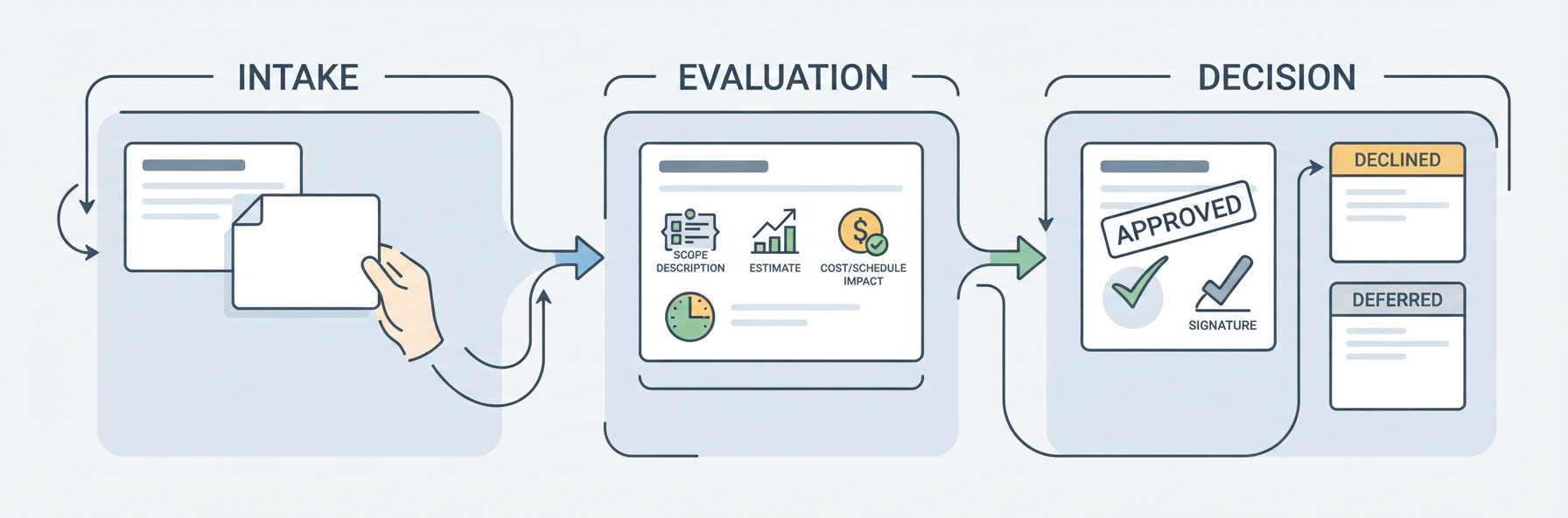
A shared board works well for a small team. Each request becomes a card: who asked, which machine, what is wrong. The card moves from “new” to “in progress” to “done”, and the fix note from the section above goes into the card when it closes. After a few months, the board shows which machines break most often and which problems keep coming back. That is the list for your next round of preventive work.
Keep the machine list from the first section on the same board, one card per unattended machine with its permission defaults and the date its password was last changed. Then the whole support picture, from requests to access decisions to history, lives in one place the whole team can see.
A one-page checklist
- Every unattended machine is listed, with a reason.
- Attended sessions use one-time passwords only.
- Each unattended machine has its own long random permanent password, stored in a password manager.
- Permanent passwords are removed when a person leaves or a machine changes role.
- Every account that manages team devices has app-based two-factor authentication and stored recovery codes.
- Sessions get only the permissions the task needs.
- Devices are signed in so connection history is recorded, and someone reviews it monthly.
- Every support request is a card with a fix note.
Choosing a tool for this
If you are picking a remote access tool for a small team, check four things against the list above: separate one-time and permanent passwords, two-factor on the account, per-session permissions, and a connection history you can open without a support ticket. Price matters too. A tool that is too expensive per seat tends to end up with one shared login, which undoes most of this guide.
For reference, Tenvo has a free plan for up to 3 devices with 2 hours of connection time a day, and paid plans from $2.99 a month without the daily limit. Details are on the Tenvo pricing page. It runs on Windows, macOS, Linux and Android, with a web client in beta.
FAQ
What is the difference between attended and unattended remote access?
Attended access needs someone at the remote computer to let you in, usually by reading out a one-time code. Unattended access lets you connect with no one present, using a permanent password set on the machine in advance.
Is unattended remote access safe for a small business?
It is as safe as the controls around it: one strong password per machine, two-factor authentication on the managing accounts, limited session permissions and a connection history someone actually reviews. Without those, it is one of the easiest ways into a network.
Do I need 2FA if every device already has a password?
Yes. Device passwords protect one machine each. The account that lists all your devices is a bigger target, and a second factor is what stops a stolen password from opening it.
How often should we change permanent passwords?
Change them when someone with access leaves, when a machine changes role, and whenever you see repeated failed logins. Otherwise, a long random password kept in a password manager does not need routine rotation.
Published: November 23, 2026